.svg)
Email Preview Text: 30 Examples + the 50-Character Fix
.avif)
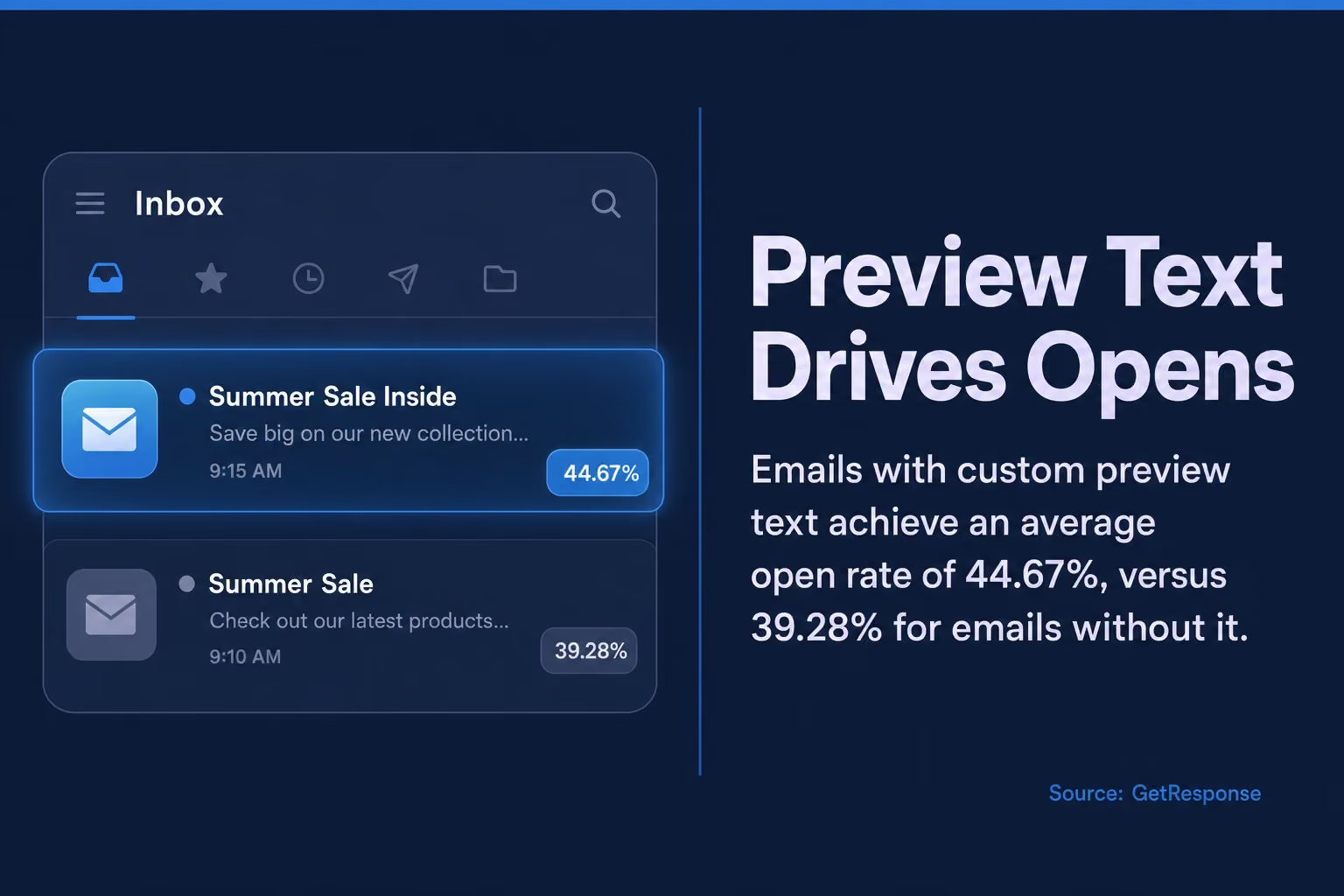
Email preview text is the short snippet of copy that appears next to or below the subject line in a recipient's inbox, and it directly influences whether your email gets opened. According to Knak's analysis of inbox decision-making, preview text accounts for 24% of the open decision, with the sender name at 42% and subject line at 34%. That makes it the third most powerful open-rate lever you have, and most marketers treat it as an afterthought. Data from GetResponse's email marketing benchmarks shows emails with custom preview text achieve an average open rate of 44.67%, compared to 39.28% for emails without it. That 5.39 percentage point gap is not trivial across a list of any size.
Most guides on this topic give you a definition and a vague list of tips. This one gives you the 50-character rule that actually drives opens, 30 real-world examples organised by email type, a character limit breakdown by email client, and the exact steps to add preview text in the most common ESPs. No filler.
What Is Email Preview Text?
Email preview text is a short line of copy pulled into the inbox display alongside the sender name and subject line, giving recipients a third signal before they decide to open or ignore your email.
Most email clients pull this text automatically from the first readable content in your email body if you have not set it explicitly. That means if you have no custom preview text, your subscribers might see "View this email in your browser" or "Having trouble viewing this email?" — which is a wasted opportunity and, frankly, a red flag that the campaign was not properly reviewed before send.
Preview text is sometimes called a preheader, a snippet, or an inbox preview. The terms are often used interchangeably, but there is a technical distinction worth knowing. We will cover that in the next section.
The text typically appears in two places. First, as a grey or muted line directly below or beside the subject line in the inbox list view. Second, occasionally at the very top of the email itself when the recipient opens it, if you have used a visible preheader rather than hidden HTML code. What your subscriber sees depends on their email client and how you have implemented the preview text technically.
Think of it as a subtitle. The subject line is your headline. The preview text is the one sentence that earns the click when the headline alone is not enough.
Why Email Preview Text Matters for Open Rates
Custom email preview text is one of the most under-used levers for improving open rates, with campaigns using it outperforming those without it by a measurable margin across every major benchmark study.
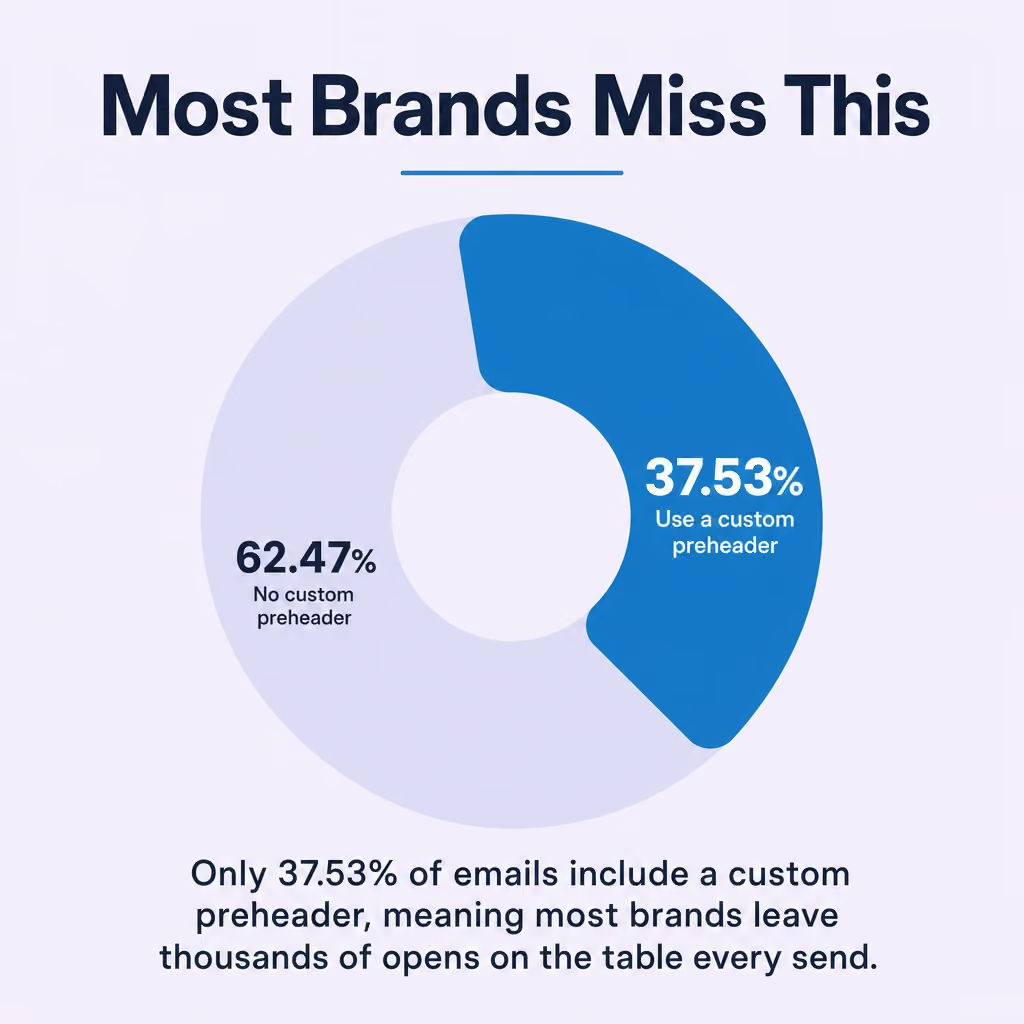
The GetResponse benchmark data is worth sitting with: 44.67% average open rate for emails with custom preview text, versus 39.28% without. That is a 13.7% relative improvement. For a list of 50,000 subscribers, that difference translates to roughly 2,695 additional opens per send. And yet GetResponse's analysis of their platform data found that only 37.53% of emails include a custom preheader at all. Most brands are leaving those opens on the table every single time they send.
It gets more pointed. MailerLite's research into campaign performance found that top-performing campaigns were 22.58% more likely to include a custom preheader than bottom-performing ones. That is not correlation from a single data point. It is a consistent pattern across thousands of campaigns, and it points in one direction.

There is an important caveat about open rate measurement. Since Apple's iOS 15 Mail Privacy Protection launched in 2021, open rates are less reliable as an absolute metric because Apple pre-fetches emails and registers opens without user action. Apple commands approximately 45 to 50% of measured email client market share by opens, which means a significant portion of "opens" in your ESP dashboard may be machine-triggered. Use open rate as a directional signal, not gospel. Still, the relative uplift from preview text holds across platforms, including non-Apple clients.
Beyond open rates, well-crafted email preview text sets accurate expectations. A subscriber who opens because the preview text promised a specific offer is more likely to click than one who opened on a vague subject line alone. That downstream effect on email engagement and click-through rates is where preview text earns its real value.
Preview Text vs. Preheader Text: What's the Difference?
Preview text and preheader text describe the same inbox snippet but refer to different methods of implementing it, with preview text typically set via an ESP field and preheader text added directly to the email HTML.
The confusion is understandable. Most marketers use the terms interchangeably, and most ESPs label their dedicated input field "preview text." But technically, a preheader is a piece of HTML at the very top of the email body, either visible or hidden via CSS. A preview text field in your ESP injects that same content automatically, usually as hidden text, so it appears in the inbox snippet without showing up in the rendered email.
Visible vs. Hidden Preheader
A visible preheader sits at the top of the email body and is styled to be readable when the email is open. Some brands use this deliberately, for example, displaying a "View in browser" link alongside a short teaser. The risk is that the preheader then reads as the first line of your email design, which can look clunky if not planned for.
A hidden preheader uses inline CSS to make the text invisible inside the email itself. Something like font-size:0;max-height:0;overflow:hidden; keeps it out of the visual layout while still feeding it to the inbox snippet. This is the cleaner approach for most campaigns because it separates the inbox experience from the email body design.
Why the Distinction Matters Practically
If your ESP offers a preview text field, use it. It handles the hidden preheader code for you. If you are building custom HTML emails, you need to add the hidden preheader code manually, otherwise the email client will pull the first visible text from the body, which is often a navigation link or an image alt tag. Neither is ideal.
The practical rule: set preview text in your ESP field every single time. If you are doing custom HTML builds, add the hidden preheader block at the top of your <body> tag. Our guide on email alt text covers related hidden copy considerations worth reading alongside this.
How Long Should Email Preview Text Be? Character Limits by Email Client
The safe zone for email preview text length is 40 to 90 characters, with the most critical information placed in the first 40 characters to survive truncation on mobile devices and constrained desktop inboxes.
The reason for this range is that every email client renders preview text differently, and there is no single universal character limit. What displays in full on Apple Mail may cut off mid-sentence in Gmail. The 40 to 90 character guidance from WowOptin's preview text character analysis reflects the overlap between what mobile clients show and what desktop clients can accommodate.
Character Limits by Email Client
The table below shows approximate preview text display lengths across the major email clients. These are not hard technical limits; they are the visible character counts before truncation occurs in typical inbox views.
The implication of these numbers is clear. On mobile, Gmail and Yahoo Mail users may see as few as 40 to 50 characters of preview text. Character limit research across email clients shows that mobile clients also truncate subject lines at around 30 to 40 characters, so a long subject line eats into the combined inbox display space and squeezes your preview text further.
The 50-Character Fix
Front-load your most important message into the first 40 to 50 characters of your preview text. Full stop. Not the second half. Not the punchline at the end. The key benefit, the offer, the urgency, the hook — whatever it is, it goes first.

A preview text that reads "Don't miss our biggest sale of the year — up to 60% off sitewide, this weekend only" works on desktop. On a mobile inbox, Gmail may display only "Don't miss our biggest sale of" and cut there. That is still readable. But if you wrote "This weekend only, don't miss our biggest sale of the year — up to 60% off" the mobile truncation leaves you with "This weekend only, don't miss" which tells the subscriber almost nothing.
Same words. Completely different result. Front-load or lose the open.
How to Add Preview Text to Your Emails
Adding email preview text involves either using your ESP's dedicated preview text field or inserting hidden HTML preheader code manually into the top of your email body, depending on how your campaigns are built.
Most major ESPs make this straightforward. Here is how to do it in the platforms we work with most frequently.
Adding Preview Text in Klaviyo
In Klaviyo's email editor, the preview text field sits directly below the subject line field in the campaign setup panel. Type your preview text there and Klaviyo handles the hidden preheader injection automatically. For flows (automated sequences), you set preview text at the individual email level within the flow editor, not at the flow level. Make sure you are setting it on every email, not just the first in a sequence. As a Klaviyo Master Platinum Partner, we see this missed on flow emails constantly.
Adding Preview Text in HubSpot
In HubSpot's email editor, click on the "Settings" tab at the top of the campaign and you will find the preview text field below the subject line. HubSpot also allows personalisation tokens in the preview text field, so you can include the subscriber's first name or company name if that fits your strategy.
Adding Preview Text in Mailchimp
In Mailchimp, the preview text field is labelled "Preview Text" and appears in the campaign setup flow just after the subject line. It is easy to miss if you move quickly through setup. Worth checking your templates to confirm it is not blank before you schedule.
Adding Preview Text via Custom HTML
If you are building emails in raw HTML, add a hidden preheader block immediately after the opening <body> tag:
<span style="display:none;font-size:1px;color:#ffffff;max-height:0;overflow:hidden;">Your preview text goes here</span>
Some developers add extra whitespace or filler characters after the preview text to stop email clients from pulling in body content after it. This is good practice if your email body starts with text that you do not want appearing in the inbox snippet.
Our [email marketing HTML builds service](/services/email-marketing-html-builds) includes preheader implementation as standard. It is one of those things that should never be a line item question.
Best Practices for Writing Effective Email Preview Text
Effective email preview text extends the subject line's argument rather than repeating it, front-loads the core message within 50 characters, and uses the remaining space to add urgency, specificity, or curiosity that the subject line alone could not carry.
These are the best practices we apply across campaigns for brands ranging from ecommerce to luxury to SaaS. Not a generic list. Things that actually change open rates.
Extend, Don't Repeat the Subject Line
The biggest wasted opportunity in email marketing is preview text that restates the subject line in different words. If your subject line is "Your order is confirmed," and your preview text says "We've confirmed your order," you have used a valuable inbox slot to say the same thing twice. The subject line and preview text should work as a pair, each carrying information the other does not.
Subject line: "Your order is confirmed"
Preview text: "Estimated delivery: Thursday. Track it here."
That pairing gives the subscriber something new and useful. The subject line closes the loop on the transaction. The preview text adds the next piece of information they actually want.
Front-Load the Key Message
As covered in the character limits section, the first 40 to 50 characters must carry the weight. Write the preview text, then ask yourself: if everything after the 40th character was cut off, would this still make sense and drive an open? If not, restructure it.
Use Curiosity and Benefit Together
The best preview text tends to do one of two things. It either states a specific benefit ("Save 25% before midnight tonight") or creates a knowledge gap that the email resolves ("The one change that doubled our open rates"). Both work. Pure curiosity without a benefit hint can feel like clickbait and damages trust over time, especially with engaged subscribers who have seen the trick before.
Add Personalisation Where It Fits
First-name personalisation in the preview text is easy to do and adds a small but real attention signal. "Sophie, your cart is still waiting" feels different from "Your cart is still waiting." But personalisation here means more than just first names. If your ESP supports dynamic content in the preview text field, use purchase history, location, or segment data. That is where the real uplift lives.
Match the Email's Tone and Promise
If your preview text creates urgency that the email body does not deliver on, you will get opens but damage trust. Preview text is a promise. The email is the delivery. They need to match.
A/B Test Preview Text Systematically
Most brands test subject lines and almost nobody tests preview text in isolation. Run an A/B test where the subject line stays identical and only the preview text changes. The results are usually more illuminating than subject line tests because the variable is isolated. Our guide to email testing for retailers covers how to structure these tests properly.
Never Leave It Blank
This should go without saying, but blank preview text is still widespread. If you do not set it, your email client will pull the first readable text from the email body. That might be "View in browser," a navigation link, or an image alt tag. None of those are helping your open rate. Set it. Every time. No exceptions.
Email Preview Text Examples by Category
The following 30 email preview text examples are organised by email type and industry, paired with the subject lines they support, to show how the combination works in practice.
Good preview text is specific to context. What works for an abandoned cart email is not the same structure that works for a newsletter. Read these as paired examples, not isolated snippets.
eCommerce: Promotional Emails
- Subject: "Up to 50% off starts now" / Preview: "Shop before midnight. Free delivery on all orders."
- Subject: "New arrivals just dropped" / Preview: "12 new styles. 3 of them are already selling fast."
- Subject: "Your exclusive member price is ready" / Preview: "Use code MEMBER20 at checkout. Expires Sunday."
- Subject: "Black Friday starts early this year" / Preview: "Access the sale 24 hours before everyone else."
- Subject: "Last chance: 30% off ends tonight" / Preview: "Your discount code expires at midnight."
eCommerce: Abandoned Cart Emails
- Subject: "You left something behind" / Preview: "Your [Product Name] is still in stock. For now."
- Subject: "Still thinking about it?" / Preview: "We're holding your cart for 24 more hours."
- Subject: "Sophie, your basket is waiting" / Preview: "Plus free delivery if you order before 11pm."
- Subject: "Only 2 left in your size" / Preview: "Low stock alert on the item in your cart."
- Subject: "We noticed you left without checking out" / Preview: "Here's 10% off to help you decide."
eCommerce: Post-Purchase Emails
- Subject: "Your order is on its way" / Preview: "Arriving Thursday. Click to track your parcel."
- Subject: "How was your order?" / Preview: "60 seconds. Tell us what you thought."
- Subject: "Time to restock?" / Preview: "You ordered 90 days ago. Running low yet?"
SaaS and Tech: Onboarding and Lifecycle
- Subject: "Welcome to [Product]. Start here." / Preview: "Your first task takes less than 3 minutes."
- Subject: "You haven't completed your setup" / Preview: "One step left. Here's what you're missing."
- Subject: "Your free trial ends in 3 days" / Preview: "Here's what you'll lose access to. Worth a look."
- Subject: "New feature: [Feature Name]" / Preview: "This is the one most users ask for first."
- Subject: "Your monthly usage report" / Preview: "You saved 4.2 hours in October. Here's how."
Newsletters
- Subject: "This week in eCRM: the inbox is changing" / Preview: "Apple Intelligence is rewriting preview text. Here's what to do."
- Subject: "Five things worth your time this week" / Preview: "Number 3 surprised us. Genuinely."
- Subject: "The email stat everyone's misreading" / Preview: "Open rates post-iOS 15. What the numbers actually mean."
- Subject: "Our take on AI-generated email summaries" / Preview: "Short version: stop relying on your preview text alone."
Welcome Emails
- Subject: "Welcome to [Brand]. Here's what to expect." / Preview: "Your first discount is inside. Valid for 48 hours."
- Subject: "You're in. Let's get started." / Preview: "Three things most new members do first."
- Subject: "A message from our founder" / Preview: "Why we built this, and what it means for you."
Re-Engagement Emails
- Subject: "We miss you. Genuinely." / Preview: "It's been 90 days. Here's what's changed."
- Subject: "Are you still there?" / Preview: "Click yes to stay. No hard feelings if not."
- Subject: "One last thing before we go" / Preview: "We're removing inactive subscribers on Friday."
Event and Promotional Emails
- Subject: "Your ticket to [Event Name]" / Preview: "Doors open at 6pm. Here's everything you need."
- Subject: "48 hours to early bird pricing" / Preview: "Save £150 before Thursday midnight."
- Subject: "[Event] is tomorrow. You're confirmed." / Preview: "Parking, schedule, and what to bring. All here."
Notice the pattern. Every subject and preview text pair gives the subscriber two distinct pieces of information. Neither line repeats the other. That is the standard to aim for across your subject line and preview text strategy.
Common Email Preview Text Mistakes to Avoid
The most damaging email preview text mistakes are leaving the field blank, repeating the subject line, and burying the key message past the 50-character cutoff — all of which actively reduce open rates on mobile devices where most email is now read.
Mistake 1: Leaving Preview Text Blank
Already covered above, but worth stating again plainly. Blank preview text pulls the first readable line from your email body. That is usually a browser link, a navigation item, or an image alt tag. None of those drive opens. Fill the field. Every send.
Mistake 2: Repeating the Subject Line
If your subject line says "Summer Sale: 40% off everything" and your preview text says "Get 40% off everything this summer," you have wasted one of your three inbox touchpoints. The subscriber has learned nothing new. Write preview text that continues the story, not one that restates it.
Mistake 3: Back-Loading the Key Message
Mobile inbox display cuts aggressively. Gmail on mobile shows roughly 40 to 50 characters of preview text. If your offer, benefit, or hook lives in characters 60 to 90, most mobile subscribers will never see it. This is the 50-character fix in its most practical form: assume 50 characters is all you have, and write accordingly.
Mistake 4: Ignoring Apple Intelligence
Starting in October 2024, Apple Intelligence began replacing manually set preview text with AI-generated email summaries on iOS devices. For subscribers using Apple Mail on iOS 18 with AI features enabled, your carefully crafted preview text may be overridden by a machine-generated summary of your email content. The practical response: write email body content that would produce a clear, accurate AI summary if summarised. Put the key offer or message in the first visible paragraph of the email body, not just in the preview text field. And keep writing good preview text, because it still displays on every non-Apple client and in Apple Mail without AI features enabled.

Mistake 5: Using Clickbait That the Email Doesn't Deliver
Curiosity-gap preview text works. But if the email body does not pay off the promise, you train your subscribers to distrust your preview text over time. That erodes open rates faster than almost anything else. The preview text is a contract with the reader. Honour it.
Mistake 6: Not Testing Preview Text At All
The MailerLite industry benchmark data shows average open rates of 43.46% across all industries. Your preview text is a significant variable in whether you sit above or below that line. Not testing it means not knowing. A/B testing preview text in isolation, holding the subject line constant, is one of the fastest ways to find what language drives opens with your specific audience.
Making Preview Text Work Across Your Email Programme
Email preview text is not a nice-to-have copywriting detail. It is one of three open-rate levers sitting in the inbox before any click happens, and most brands consistently underinvest in it.
The principles are not complicated. Set it on every email. Front-load the key message within 50 characters. Extend the subject line rather than repeating it. Test variations systematically. And write email body copy that produces a sensible AI summary, given what Apple Intelligence is now doing with iOS.
If you are building automations, check every email in every flow. It is very common to find that preview text was set on the first email in a welcome or post-purchase series and then left blank on every subsequent one. Our 100 email marketing best practices for ecommerce covers this and dozens of related optimisations in one place.
Want a full audit of your current email programme, including preview text, subject line strategy, and inbox deliverability? Our email marketing audit service covers every variable that affects opens, clicks, and revenue. Or if you'd rather start with a conversation, get in touch with the team.